
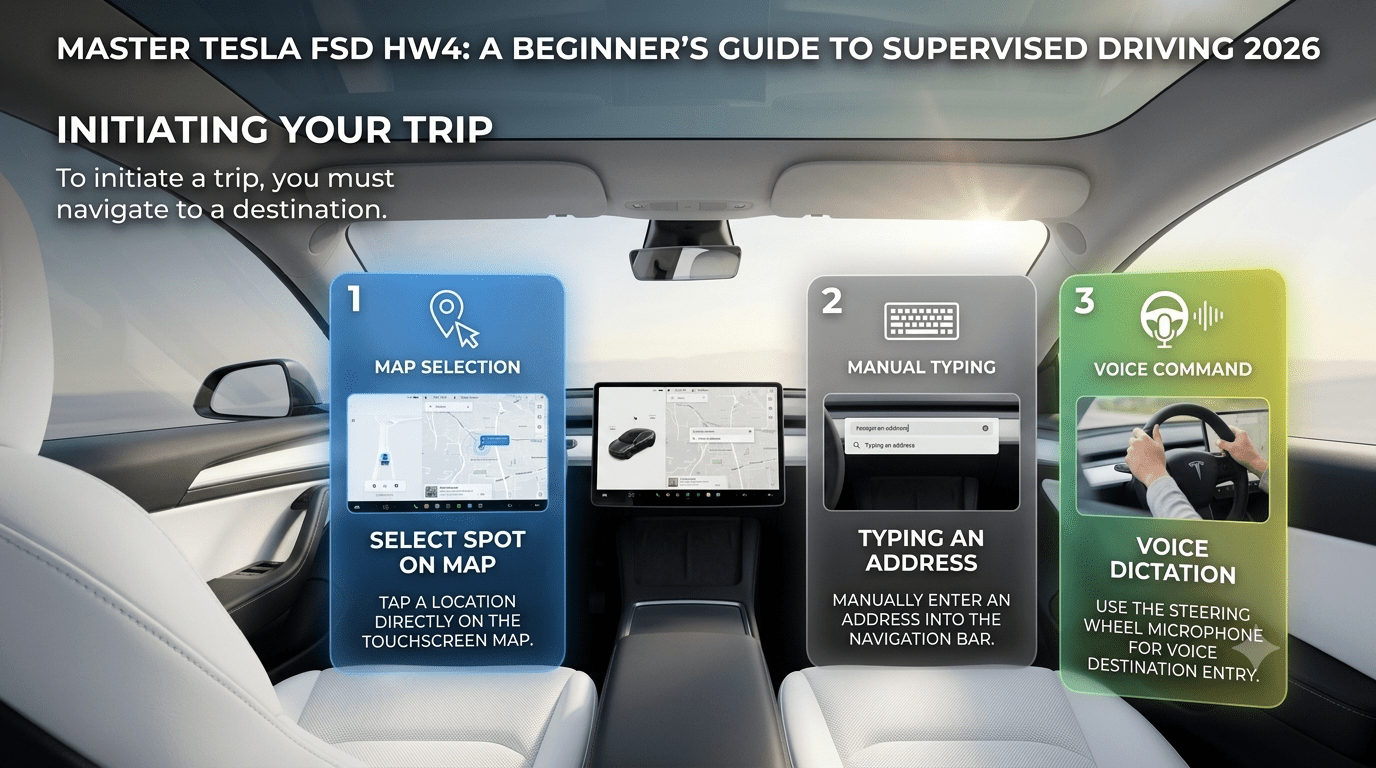
Master Tesla FSD HW4: A Beginner’s Guide to Supervised Driving 2026
Unlock the full potential of your Tesla with our comprehensive guide to Full Self-Driving (Supervised). From the moment you engage the system to the final parking maneuver at your destination, FSD is designed to navigate city streets, highways, and neighborhoods with ease.
Whether you are a new subscriber or curious about how the car handles roundabouts, traffic lights, and railroad crossings, we will show you how to customize your experience using speed profiles and how to remain safely in control throughout every mile.
Activation and Subscription
To turn on Full Self-Driving (FSD), click the car icon in the bottom left corner of the screen to open the menu, then select the "Self-driving" tab and ensure "Full Self-Driving" is selected.
If you do not see FSD in this menu, you may not be currently subscribed.
You can verify your status in the vehicle’s "Software" menu under "Full Self-Driving Capability"

or via the Tesla mobile app by navigating to "Upgrades" and then "Software Upgrades". Selecting the FSD subscription option in the app will update your account and enable the feature in your car's menu.

Setting Speed Profiles
Before driving, you should choose a speed profile to determine the vehicle's aggressiveness.
- Sloth: This profile is recommended for beginners as it is very cautious, never exceeds the speed limit, and is ideal for getting used to the system.
- Chill: This setting drives at or slightly above the speed limit.
- Standard: This is the most common choice for users, typically driving about 5 mph over the speed limit.
- Hurry and Mad Max: These are faster, more aggressive profiles that can be reached by scrolling up on the right scroll wheel.
These profiles affect how the car handles lane changes, passing slower traffic, and the aggressiveness of decisions like left-hand turns. You can easily switch between these profiles while driving by using the right scroll wheel; scrolling up increases aggressiveness while scrolling down decreases it.
Navigation and Starting the Drive
To initiate a trip, you must navigate to a destination. You can do this by selecting a spot on the map, manually typing an address into the navigation bar, or using the steering wheel microphone for voice dictation (e.g., "Navigate to Meyer").

Once a destination is set and you are buckled in, a "Start Self-Driving" button will appear. If you have the "Brake to Confirm" setting enabled, you must hold the brake pedal down before you can select the start button. Once active, the car handles everything from your current parking spot to the destination.
Driver Responsibility and Indicators
While FSD is engaged, the driver remains legally liable and in charge of the vehicle, requiring constant attention to take over if necessary. A blue line in front of the car on the display indicates where FSD is planning to go. If you take over, this line will disappear or turn gray, indicating the system is no longer in control.
How to Disengage and Re-engage
There are three ways to turn off FSD and take manual control:
- Tap the brake pedal.
- Apply force to the steering wheel to manually override it.
- Click the right scroll wheel (or push up on the right stalk if your Tesla has stalks).
To re-engage FSD while driving, simply click the right scroll wheel again or pull down on the right stalk.
Handling Real-World Road Scenarios
FSD is designed to handle a variety of environments, including neighborhood roads, city streets, and highways. Specific behaviors include:
- Roundabouts: The car identifies yield signs, waits for a safe gap, and automatically uses blinkers to exit.
- Speed Bumps: The system identifies speed bumps and slows down to pass over them comfortably.
- Traffic Lights: It stops for red lights and waits for green, performing a quick check for cross-traffic before proceeding.
- Railroad Crossings: At crossings with yield signs, the car slows down to verify no train is coming rather than making a full, disruptive stop.
- Stop Signs: The vehicle will come to a complete stop at stop signs. If you feel it is safe and want the car to proceed faster, you can provide a slight tap on the accelerator.
Destination Parking
In the destination drop-down menu, you can choose where the car should park upon arrival: a parking lot, a street, or a driveway.
Final Safety Reminder
Even though the system can execute complex maneuvers flawlessly, drivers must remain vigilant and attentive to the car’s speed and traffic decisions at all times.
Happy and safe driving! 🤗✨
Sources:
-
Jowua Engineers Team 💪
-
Tesla Vehicle Support: https://www.tesla.com/support

-
Special Thanks to Eric at "Tesla How To" for some photo / advice in this blog; 🙏🎉👇
- YouTube: Tesla How To "How to Use Tesla FSD (Supervised) - Tesla Full Self Driving (Beginner Tutorial)" https://youtu.be/aiVWK8k3tP8?si=fgwTMUeuLPOle4Yx
Read more
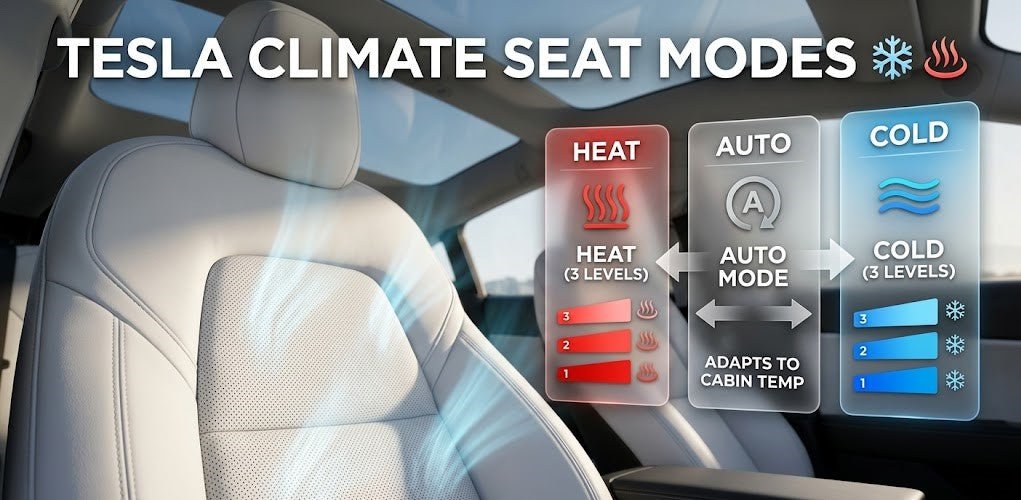
Mastering Tesla Ventilated Seats: 2026 Model Y & Model 3 Guide
Stop the "sticky seat" struggle! Learn how to identify, activate, and customize the ventilated cooling seats in your 2026 Tesla Model Y Juniper and Model 3 Highland for maximum comfort.
Více informací