
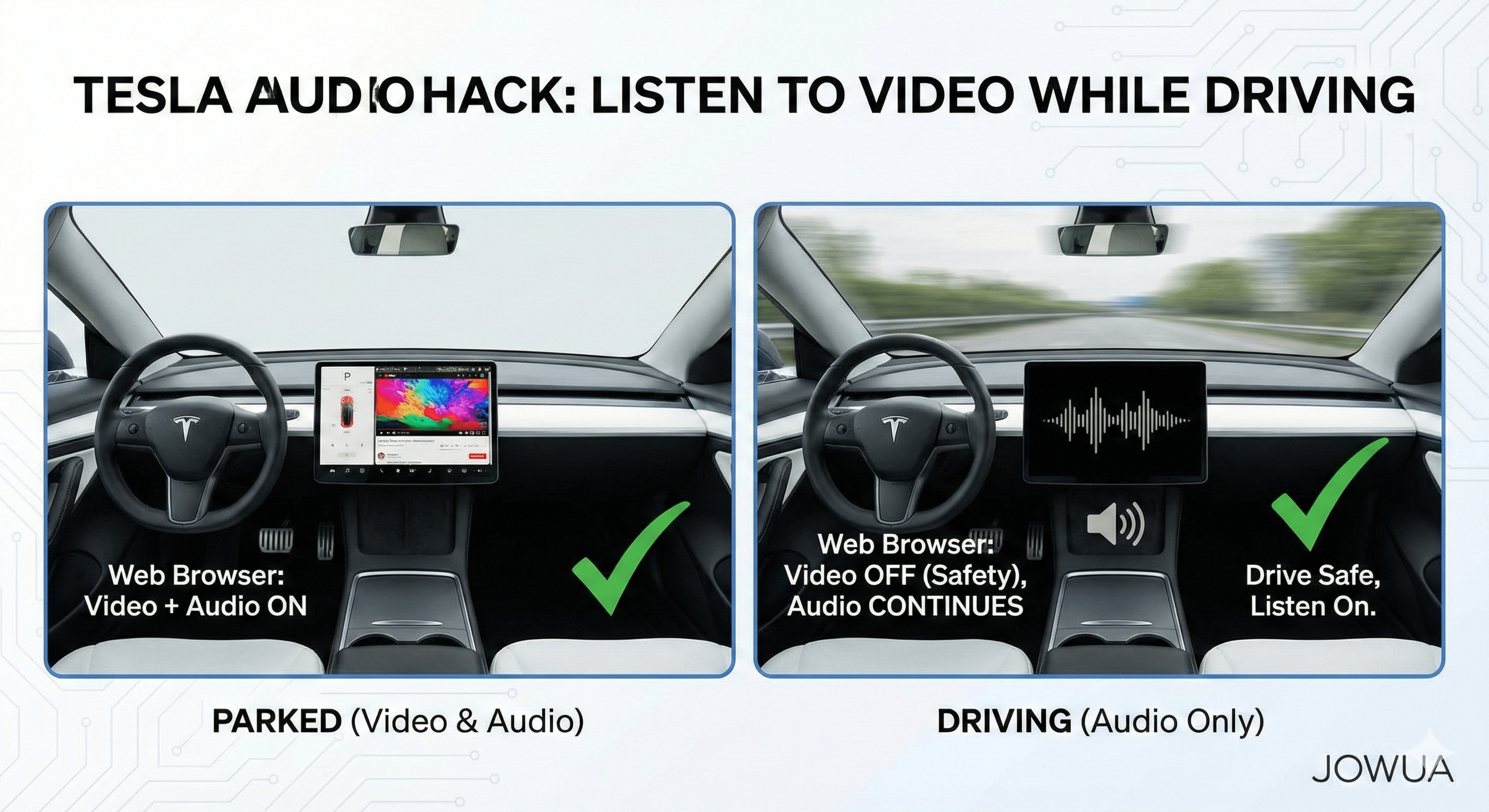
Tesla How-To 2026: How to Listen to Video Audio While Driving ?
When you're behind the wheel of your Tesla, the advanced infotainment system offers a plethora of features. While watching videos on the massive center screen is perfect for Supercharging sessions, Tesla prioritizes safety by disabling video playback the moment you shift into Drive.

However, there is a clever, safe workaround for those who want to listen to the audio from a video—such as a video podcast, live sports commentary, or a news broadcast—without the visual distraction. Here is your step-by-step guide to mastering the "Tesla Audio Hack."
Quick Guide: The 4 Steps to Audio-Only Playback
Step 1: Bypass the "Theater" App — Use the Web Browser
The first rule is to avoid the integrated Theater app (YouTube, Netflix, Disney+). These apps are hard-coded to cut both video and audio the moment the car moves.
Instead, tap the Web Browser icon. Think of the browser as your gateway; unlike the apps, the browser allows audio streams to persist even after the safety system suppresses the visual feed.
Pro Tip: If the car keeps trying to launch the YouTube "App" while you are in Park, try shifting into Drive (with your foot on the brake) before opening the browser to keep it in the "windowed" web mode.

Step 2: Navigate to Your Content
Once the browser is open, type in the URL for your desired service. Unlike the restricted Theater menu, the browser gives you access to virtually anything:
-
Hulu / Netflix / Disney+ (Web versions)
-
YouTube (Great for video podcasts like Joe Rogan)
-
Sports Streaming (fuboTV, ESPN, etc.)
-
Live News segments
Step 3: Launch Your Video
Find the specific video or live stream you want to hear. Click play just as you would on a laptop. At this stage, while parked, you will see both the video and hear the audio clearly on your Tesla’s high-fidelity sound system.
Step 4: Set Your Volume Early
Before shifting out of Park, ensure your audio is enabled and at a comfortable level. Use the on-screen volume slider or your left steering wheel scroll button. Adjusting this while stationary ensures you aren't fumbling with settings once you hit the road.
The Experience: What Happens While Driving?
The moment you shift into Drive:
-
Safety Kick-in: The video feed will automatically disappear or go black. This is intentional to prevent driver distraction.
-
Continuous Audio: The audio will continue to play uninterrupted through the car's speakers.
This allows you to stay informed and entertained while keeping 100% of your focus on the road ahead.
Returning to Video Mode
When you reach your destination and shift back into Park, your Tesla is smart enough to remember where you were. You will typically see a "played media" icon or a browser shortcut on your screen. Tap it, and the video will visually resume exactly where the audio left off.
Sources:
- Jowua Engineers Team 💪
-
Tesla Vehicle Support: https://www.tesla.com/support
- Special Thanks to "TESLA HOW TO" for some advices in this blog; 🙏🎉👇

- YouTube: Tesla How To "Tesla How To Listen To Video While Driving - Keep Audio of Video Player Playing While Driving" https://youtu.be/YEtCpyYCrY0?si=zJXWFV6whUesjUcJ&t=19
Read more
테슬라 연장 보증, 과연 가치 있을까? (2026년판: 구독, 배터리, 새로운 ZEV 규정)
그래서, 당신의 테슬라는 나이를 먹고 있지만 여전히 미래처럼 느껴집니다. Y아마도 테슬라 앱에서 알림이 뜨는 것을 보셨을 겁니다: “보증을 연장하세요.”
더 알아보기
댓글 남기기
이 사이트는 hCaptcha에 의해 보호되며, hCaptcha의 개인 정보 보호 정책 과 서비스 약관 이 적용됩니다.