
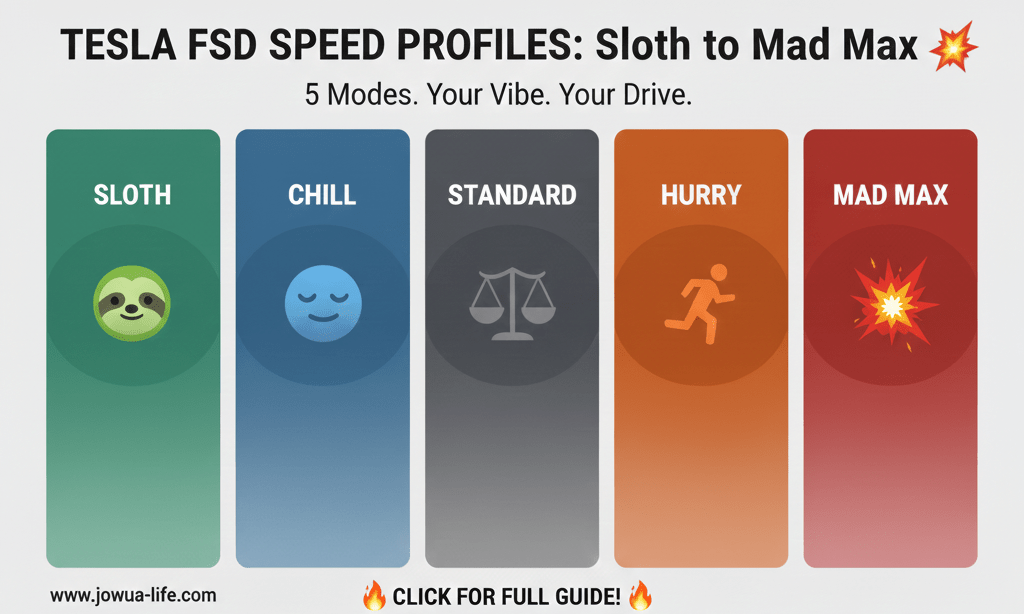
The Ultimate Guide to Tesla FSD Speed Profiles: Sloth 🚶♂️ to Mad Max 🚀 2025 - 2026
Tesla FSD Speed Profiles explained! We break down what each mode means (Sloth, Chill, Standard, Hurry, Mad Max) and show you how to change them quickly. Essential guide for new FSD users. 👇
Table of Contents (Snippet Summary)
| Section | Description |
| I. What Are FSD Speed Profiles? | Understanding the five modes (Sloth, Chill, Standard, Hurry, Mad Max) and the core functions they control. |
| II. Guide to the 5 Driving Styles | Detailed breakdown of each profile's speed, style, and ideal use case scenarios. |
| III. How to Instantly Change Your Profile | Quick tutorial on using the scroll wheel and on-screen menu. |
| IV. Top 3 FAQs from New FSD Users | Answers to the most common questions about speed profiles. |
I. What Are FSD Speed Profiles?
Tesla's Full Self-Driving (FSD) system, specifically with the latest v14+ update (Software 2025.32+), introduced five distinct Speed Profiles (also known as Driver Profiles). These settings allow the driver to customize the car's automated driving personality to match their comfort level, traffic conditions, or personal style.
The five modes range from the most cautious to the most aggressive:
| Rank (Aggressiveness) | Profile Name |
| 1 (Least) | Sloth 🦥 |
| 2 | Chill 😌 |
| 3 (The Default) | Standard ⚖️ |
| 4 | Hurry 🏃 |
| 5 (Most) | Mad Max 💥 |

What Do These Profiles Control?
Each profile simultaneously adjusts three main behaviors of your FSD system:
-
Speed Relative to Limit: How fast the car drives relative to the posted speed limit (e.g., 0% over vs. 30%+ over).
-
Following Distance: The distance maintained between your Tesla and the car directly in front of you.
-
Assertiveness/Passing: How often the car uses the passing lane and how assertive it is when merging or making lane changes.
II. Guide to the 5 Driving Styles
Understanding the unique behavior of each profile helps maximize safety and efficiency for different driving scenarios:
| Profile | Key Style | Speed Relative to Limit | Best Use Case Scenario |
| 1. Sloth 🦥 | Ultra-Cautious. Prioritizes safety and adherence to rules. | 0% over limit. Drives precisely at or below the posted speed. | New FSD Users, city driving, school zones, bad weather, or when police are nearby. |
| 2. Chill 😌 | Relaxed & Smooth. Focuses on passenger comfort and minimal acceleration/braking. | +3% to +10% over. Minimal aggression, further following distance. | Daily Commutes, long-distance road trips, rainy conditions, or driving with easily carsick passengers. |
| 3. Standard ⚖️ | Balanced & Efficient. Designed to mimic the average, typical driver. | +10% to +20% over. Moderate follow distance and passing frequency. | The Default Sweet Spot. Recommended for 90% of drivers and mixed city/highway use. |
| 4. Hurry 🏃 | Assertive & Quick. Takes advantage of opportunities to pass and merge quickly. | +20% to +30%+ over. Shorter follow distance and quick lane changes. | When you are running late, entering heavy traffic, or generally prefer an aggressive driving pace. |
| 5. Mad Max 💥 | Bold Lane Changes. Prioritizes traffic flow and maximizing speed where safe. | Maximum Flow. Safely above the limit, pushing the boundaries of assertive driving. | Highway Domination, navigating dense gridlock, or in areas known for aggressive city traffic (e.g., certain busy US cities). |
III. How to Instantly Change Your Profile
Changing your profile is designed to be quick and intuitive, allowing you to adapt instantly to traffic conditions:
-
Using the Right Scroll Wheel (The Fast Way): Once FSD is engaged, simply use the Right Scroll Wheel on your steering wheel. Scroll up or down to instantly cycle through the different profiles (Sloth, Chill, Standard, Hurry, Mad Max). This is the fastest way to adjust your car's "mood."

-
Using the On-Screen Menu:
-
Access the Controls menu on the main screen.
-
Navigate to the Autopilot Speed Profile setting.
-
Tap to select the mode that matches your current desired vibe.

-
IV. Top 5 FAQs from New FSD Users
1. Which mode should I start with if I'm new to FSD?
If you are just starting out with FSD, it is strongly recommended to begin with Sloth or Chill mode. These settings offer a more cautious driving experience with larger following distances, allowing you to get accustomed to the technology's reactions and operational style in a safer, more relaxed environment.
2. Does the Standard profile follow the speed limit?
The Standard profile is designed to replicate the average driver, meaning it will typically target a speed 10% to 20% over the posted speed limit when driving conditions allow. If you want your Tesla to adhere strictly to the speed limit (0% over), you must select the Sloth profile.
3. Can I use these modes for long-distance highway trips?
Yes, but the recommended mode depends on your preference. For many drivers, Chill mode is ideal for long-distance highway travel, as it results in less frequent passing and merging, providing a more relaxed and stress-free experience in the non-passing lanes. However, Standard offers a faster, more typical pace.
4. If a mode drives 20%+ over the speed limit, is that legal?
Yes, setting a mode like Hurry or Mad Max to exceed the posted speed limit by any percentage is contrary to traffic laws in all jurisdictions. While FSD is designed to operate safely, the driver is always 100% legally responsible for the vehicle's speed and behavior. You should only use these higher settings if you are comfortable accepting the risk of a speeding fine, as FSD operates based on your requested speed bias, not local legal limits.
5. How can I ensure critical footage (Sentry/Dashcam) is safely recorded?
For extra safety during FSD operation, and to ensure you never miss a critical Sentry Mode or Dashcam event, you should upgrade your storage solution.
The factory-provided USB drives are great for getting started, but they can fill up quickly as the storage capacity is typically around 64 GB or 128 GB. This means critical footage might be overwritten before you can save it.

To guarantee comprehensive and reliable recording, you can try using a dedicated, high-capacity external SSD Hub (like the Jowua 1TB hub). This provides reliable, extended storage to ensure that all events surrounding the car are recorded and saved without fear of data being overwritten.
Sources:
- Jowua Engineers Team 💪
-
Tesla Vehicle Support: https://www.tesla.com/support
- Special Thanks to "TESLA HOW TO" for photos in this blog; 🙏🎉👇

- YouTube: Tesla How To "Tesla How To Switch FSD Speed Profiles: Sloth vs Chill vs Standard vs Hurry vs Mad Max Explained" https://youtu.be/552UL2GZGwM?si=k2zK8uWZxvU4n3BK
Read more
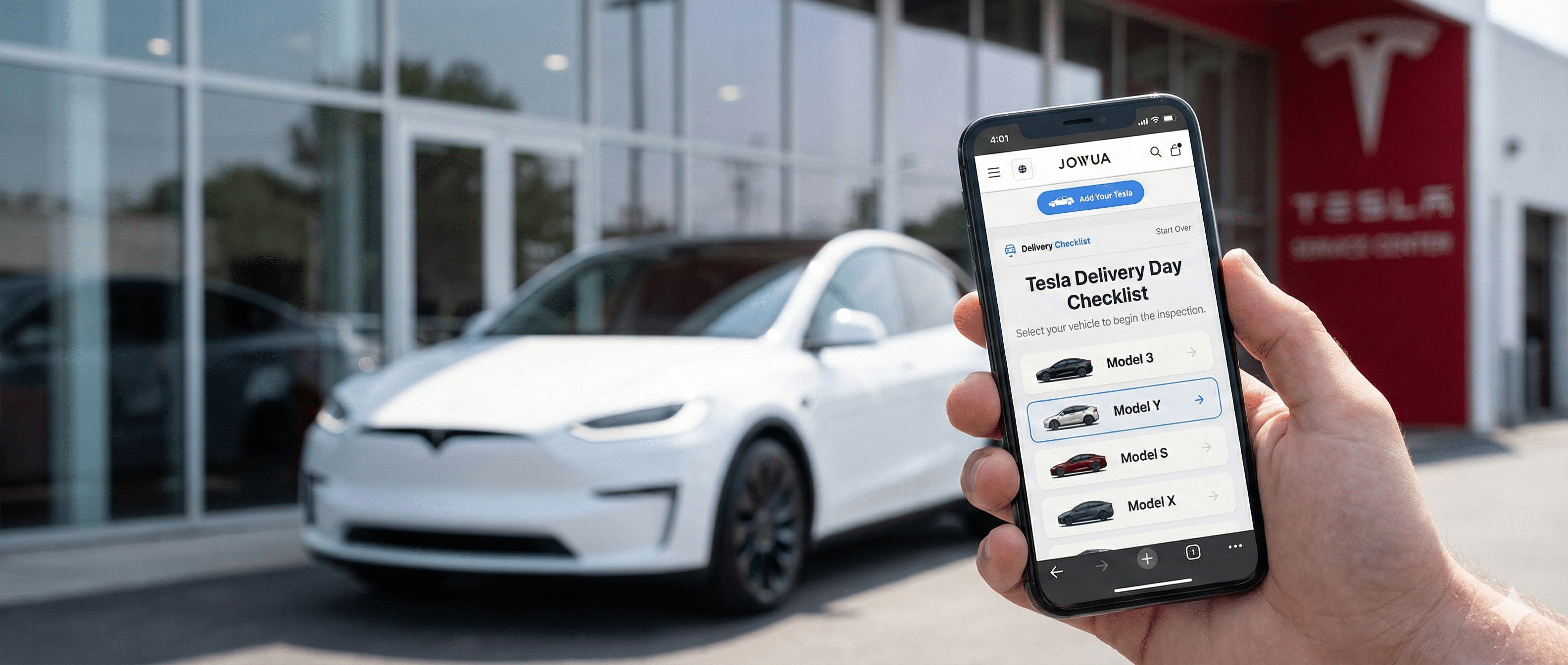
The Ultimate 2026 Tesla Delivery Day Checklist (Free Tool + PDF)
The wait is finally over. You’ve refreshed the app a thousand times, and your delivery date is finally here. Whether you are picking up a Model 3, Model Y, or the new Cybertruck, the excitement is ...
더 알아보기
댓글 남기기
이 사이트는 hCaptcha에 의해 보호되며, hCaptcha의 개인 정보 보호 정책 과 서비스 약관 이 적용됩니다.