
How to Create Tesla Custom Wraps with the Latest Tesla Holiday Update
How to Create Tesla Custom Wraps with the Latest Tesla Holiday Update
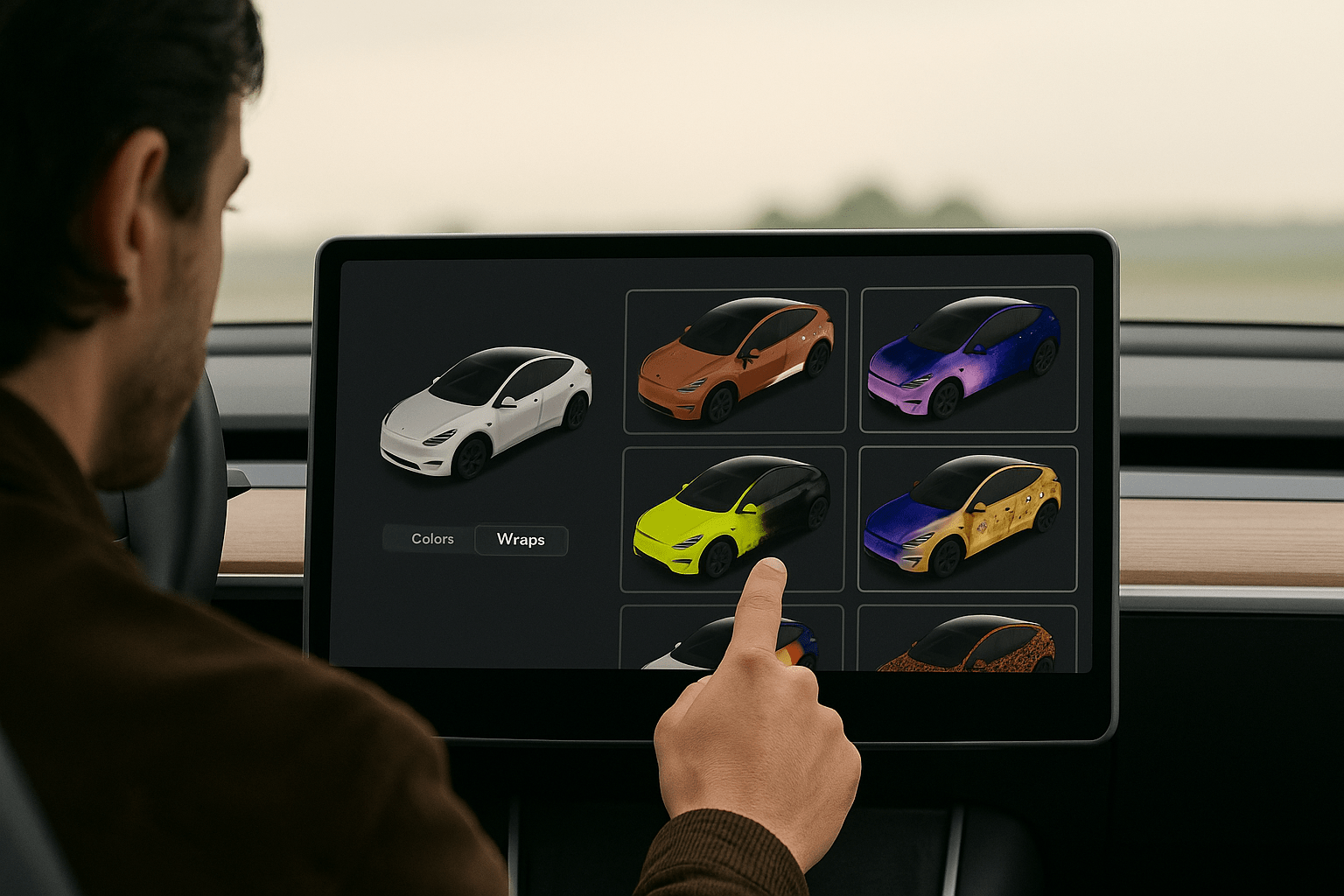
Tesla's 2025 Holiday Update introduced one of the most unique personalization features yet: Custom Wraps. This playful upgrade to the Paint Shop within Tesla’s Toybox gives owners the ability to personalize their vehicle’s 3D visualization with custom designs. If you’ve ever wanted your on-screen Tesla to wear a Santa suit, match your real-world wrap, or represent your love for Jowua, now’s your chance.
In this guide, we’ll walk you through the full process of creating and applying custom wraps to your Tesla, from editing the right template to plugging in a USB drive. Whether you want a subtle accent or a full-blown custom artwork, Tesla’s new feature puts the creative power in your hands.
What Are Tesla Custom Wraps?
Tesla custom wraps, as enabled by the Holiday 2025 software update, are personalized PNG images that overlay your Tesla’s digital 3D model inside the car’s Paint Shop interface. While this doesn't affect the exterior of your real car, it's a fun way to see your design flair reflected in your car’s touchscreen interface.
This is part of the Toybox → Paint Shop app, under a new “Wraps” tab that allows you to preview and select your uploaded designs.
Tesla Wrap Template Overview
To get started, Tesla provides official wrap templates for each vehicle model. You can find those here. These templates outline which areas of the 3D model you can customize. You’ll be editing this template in your favorite image editing software (Photoshop, GIMP, Canva, etc.).
Each white space on the template corresponds to a different surface of your car. You fill in these white zones with your graphics, colors, or textures, and the rest is handled by the car’s built-in visualizer.
How to Create Your Tesla Custom Wraps
- Download the Right Template
- Edit the Template
- Export your image
When your design is ready, save your image using these specifications:
-
File format: PNG
-
Resolution: Between 512×512 and 1024×1024 pixels
-
File size: Must be under 1 MB
-
File name: Only use alphanumeric characters, spaces, underscores, or dashes (30-character max)
How to Set Up Your USB Drive for Tesla Wraps
Your wrap designs must be transferred via USB, similar to how Tesla handles Sentry Mode footage or Boombox sounds. Here’s how:
1. Format Your USB Drive
The USB must be formatted using one of the following supported file systems:
-
exFAT
-
FAT32 (Windows)
-
MS-DOS FAT (Mac)
-
ext3 or ext4
❗ Note: NTFS is not supported.
2. Create a Folder Called Wraps
At the root level of your USB drive, create a folder named: Wraps
Make sure this is the only folder related to wraps. Do not include Tesla firmware or navigation map update files.
3. Add Your PNG Files
Drop your completed PNG wrap files into the Wraps folder. You can include up to 10 wrap files at once.
Applying Tesla Custom Wraps in Your Vehicle
Once your USB is prepared and inserted into one of the vehicle’s USB ports, follow these steps:
- Go to Toybox on your Tesla touchscreen
- Tap into Paint Shop
- Select the Wraps tab
- Browse your designs and tap to apply
Your selected wrap will now display over your Tesla's digital 3D avatar.
Troubleshooting Tesla Wrap Uploads
If your custom wraps don’t appear or won't load, double-check the following:
-
The USB drive is formatted correctly
-
The USB contains only the
Wrapsfolder (no map or firmware update files) -
The PNG images are:
-
Correct size (512x512 to 1024x1024 px)
-
Under 1 MB each
-
Properly named
-
In the correct PNG format
-
Still having issues? Try reformatting the USB drive and uploading a single image to isolate any problem.
For the ultimate upgrade
Show your colors and how much you love Jowua by putting on one of the three Jowua custom wraps. Simply click here, select your car and then download one of the three designs shown.
Like what you've read? Subscribe to our newsletter and browse our best sellers for more info.
Read more
Tesla Holiday Update 2025 - How it Helps Owners
Tesla Holiday Update 2025: Every New Feature (& How It Actually Helps Owners) It’s that time of year again: Tesla’s 2025 Holiday Update is rolling out, and this year’s bundle mixes playful Toy...
En savoir plus
Laisser un commentaire
Ce site est protégé par hCaptcha, et la Politique de confidentialité et les Conditions de service de hCaptcha s’appliquent.